Enrich your bulk dataset?
If you've ever tried to clean or enrich a messy dataset manually, you know how time-consuming (and honestly, frustrating) it can be. Whether you're working
On this page
If you've ever tried to clean or enrich a messy dataset manually, you know how time-consuming (and honestly, frustrating) it can be.
Whether you're working with thousands of contacts, a list of companies, or a mix of both doing it by hand simply doesn't scale.
That's exactly why Enrich CRM's File Upload Enrichment feature exists.
It's designed to help you enrich entire datasets quickly, accurately, and with almost no effort.
Purpose
This guide shows you how to use Enrich CRM's File Upload Enrichment feature to clean and enrich entire datasets in just a few clicks.
No manual edits, no endless spreadsheets just a fast, reliable way to upgrade thousands of records at once.
Context
If you've ever tried to clean or enrich data by hand, you know how painful it is.
Fixing names, finding company domains, searching for LinkedIn profiles it's slow, repetitive, and impossible to scale.
That's why the File Upload Enrichment tool exists.
It takes your messy file—whether it's contacts, companies, or both and turns it into complete, accurate, enriched data automatically.
I'll walk you through the whole process step by step so you can see just how simple it really is.
1. Start by Uploading Your File
To begin, hit the Upload Files button.
You can upload your data in two ways:
- Drag and drop your file
- Copy and paste your table directly into the upload area
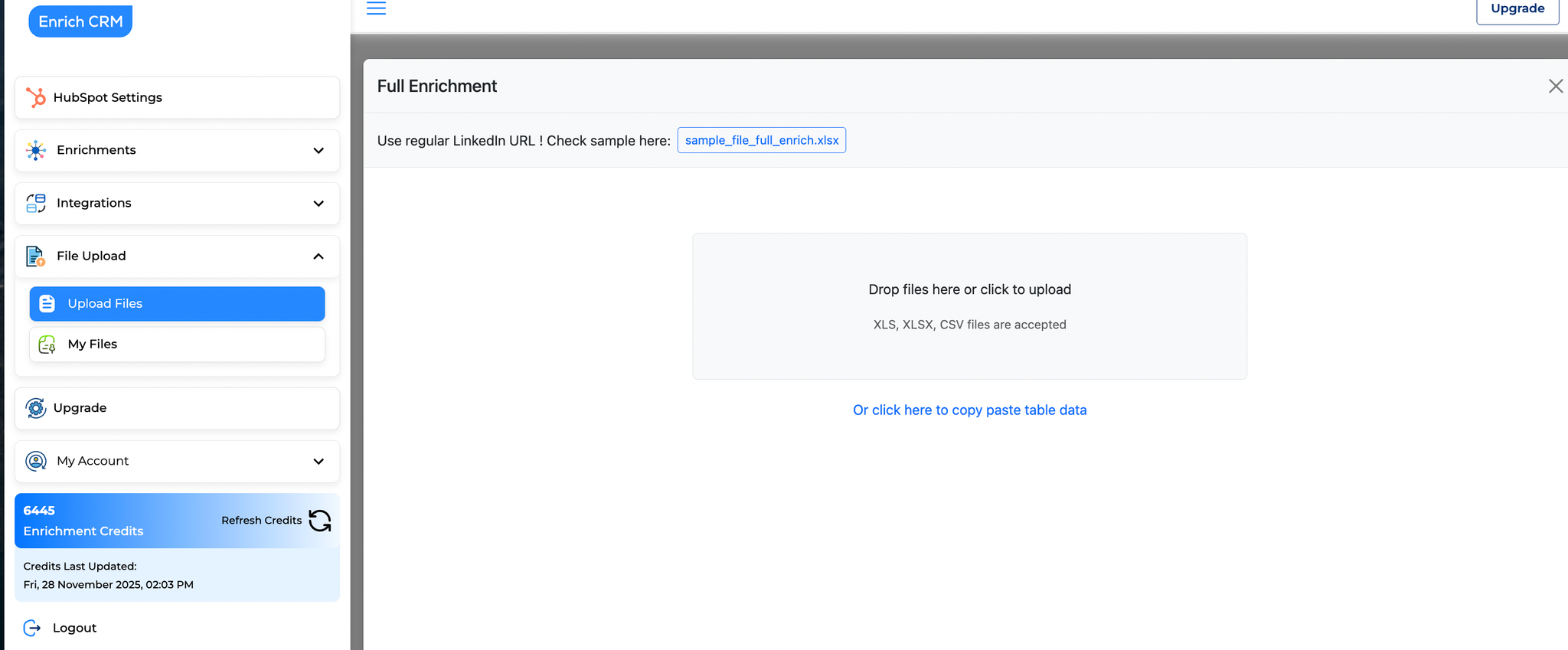
Once your file is uploaded, you'll see it appear instantly. 🎉
2. Map Your Fields Correctly (Important Step)
Field mapping is the most important part of the entire process.
After your file loads, you need to map each of your columns to the relevant field inside Enrich CRM.
You can map fields such as:
- Website
- LinkedIn URL
- Company name
- First name / Last name
- Full name
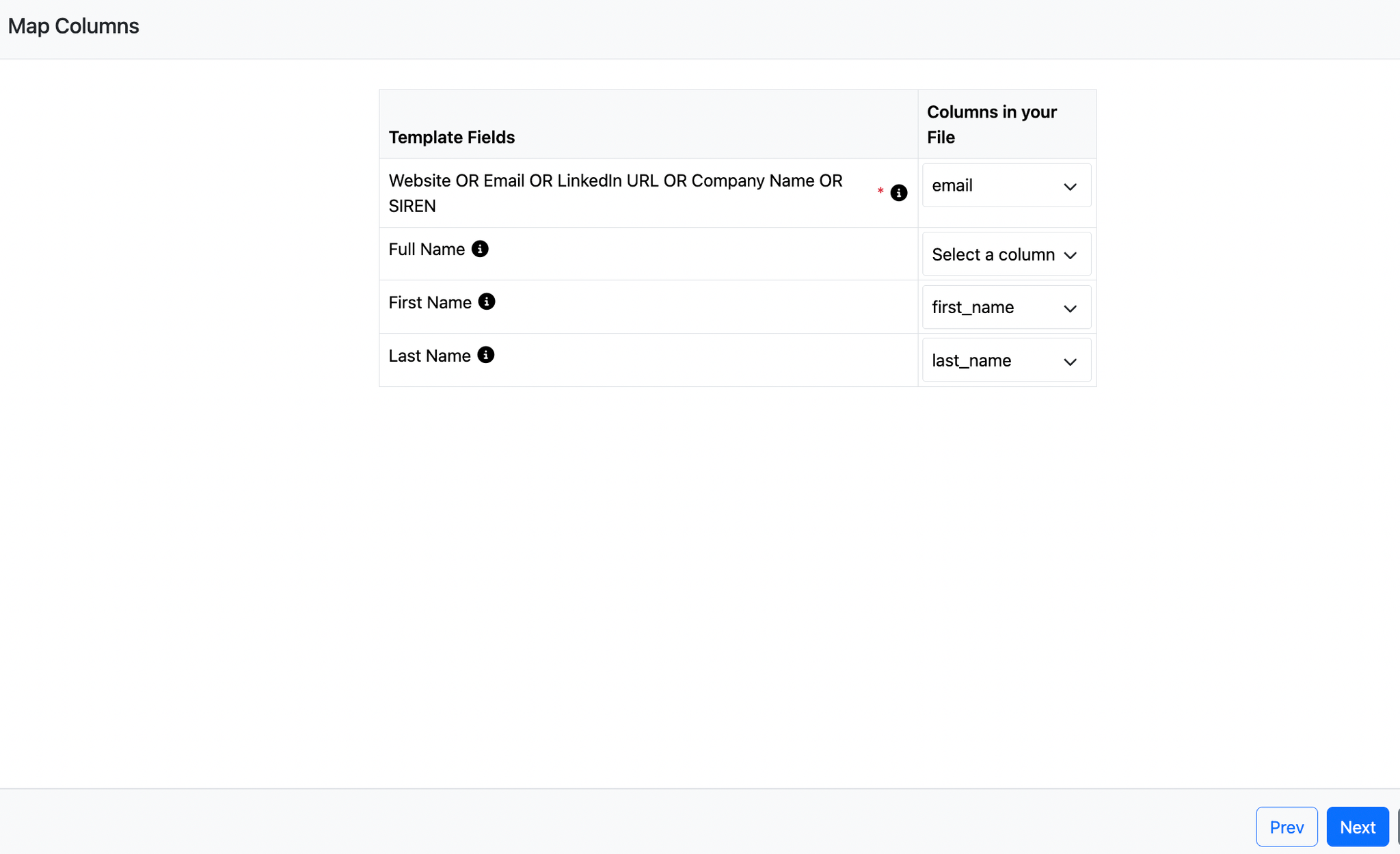
If your file is having several datapoints in your file such as website, LinkedIn URL, Company Name, Siren Number.
Please prioritize them in the following order:
- LinkedIn URL
- Website
- Company Name
- Siren Number
If you're enriching contact data, you must provide:
- First name + last name, or
- Full name
In this example, we'll map first name, last name, and website — and then click Next. 👉
3. Make Sure Your File Has a Header Row
Before moving forward, Enrich CRM will check that your file has a header row.
This is important because it ensures your mapping is accurate and your enrichment will run smoothly.
Once confirmed, click Next.
4. Verify & Clean Your Data (Optional but Helpful)
Before enrichment begins, you can quickly review your data.
If you spot any errors — maybe a typo or a wrong LinkedIn URL — you can fix it using the Find & Replace option.
It's fast and very useful for last-minute corrections.
A quick note: if your file includes any name field (first name, last name, or full name), Enrich CRM will automatically treat it as contact enrichment.
If your file includes no name fields, you can choose company-only enrichment, which doesn't require contact details.
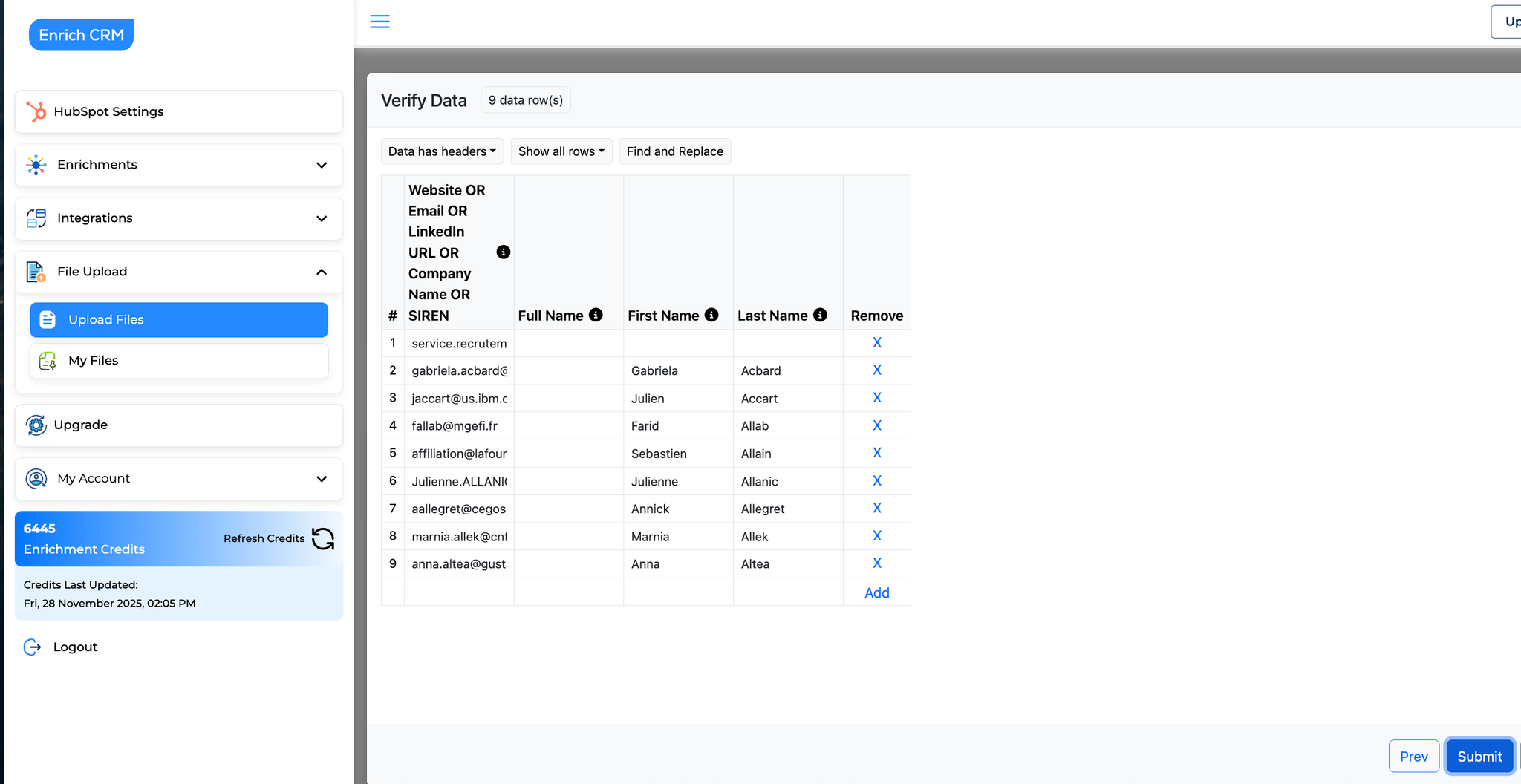
Once everything looks correct, click Submit. 🔔
5. Choose the Type of Data Enrichment You Want
Now for the fun part, selecting your enrichment categories.
You can choose from:
- Firmographics (industry, size, HQ, business details, etc.)
- Financials
- Tech stack
- Trends & signals
- Email Finder
- Contact-level data (skills, job change status, education, languages, etc.)
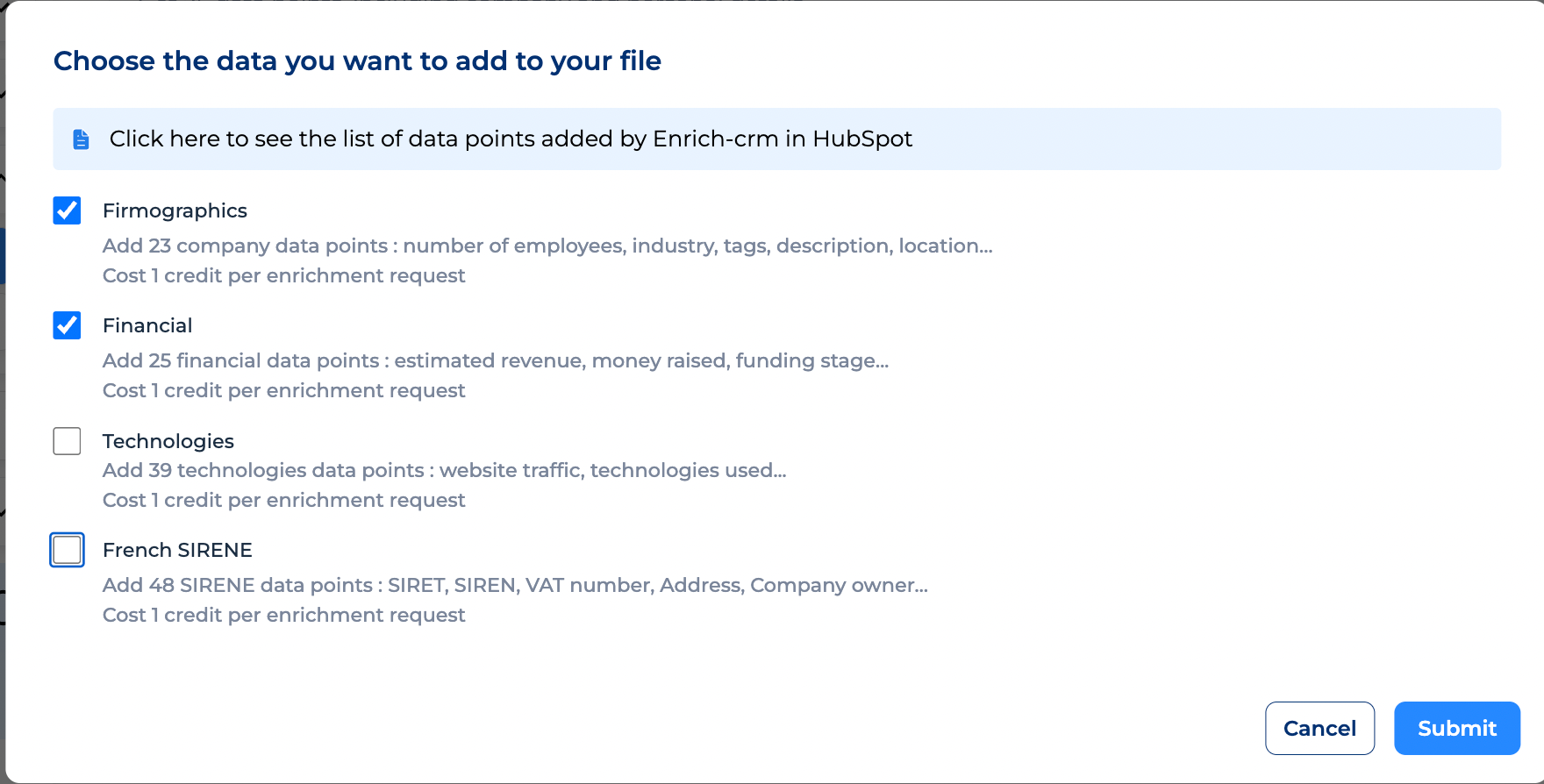
Each category has its own rich set of attributes, so you can click to expand and preview data points: https://docs.google.com/spreadsheets/d/11Zd3ynSKpnzzqJrjTHRlrXDYaG_uBp7Y6YQAGbDwslQ/ thats exactly what's included.
Click Submit to start the enrichment 👇
6. Sit Back — Enrichment Happens in Real Time
As soon as you submit, Enrich CRM begins processing your file.
The system performs live searches for each contact or company in real time.
Depending on your file size, enrichment may take from a few minutes to a few hours but don't worry:
- You'll receive an email notification the moment your file is ready
- You can also check the status directly inside the dashboard
Let's open the results! 🙀
7. Review Your Enriched Results
Remember how the original file only had:
- First name
- Last name
- Company website
Now look at the enriched output.
We can see:
- LinkedIn profile
- Headline
- Active company
- Current company start date
- Location
- Seniority
- And many more fields
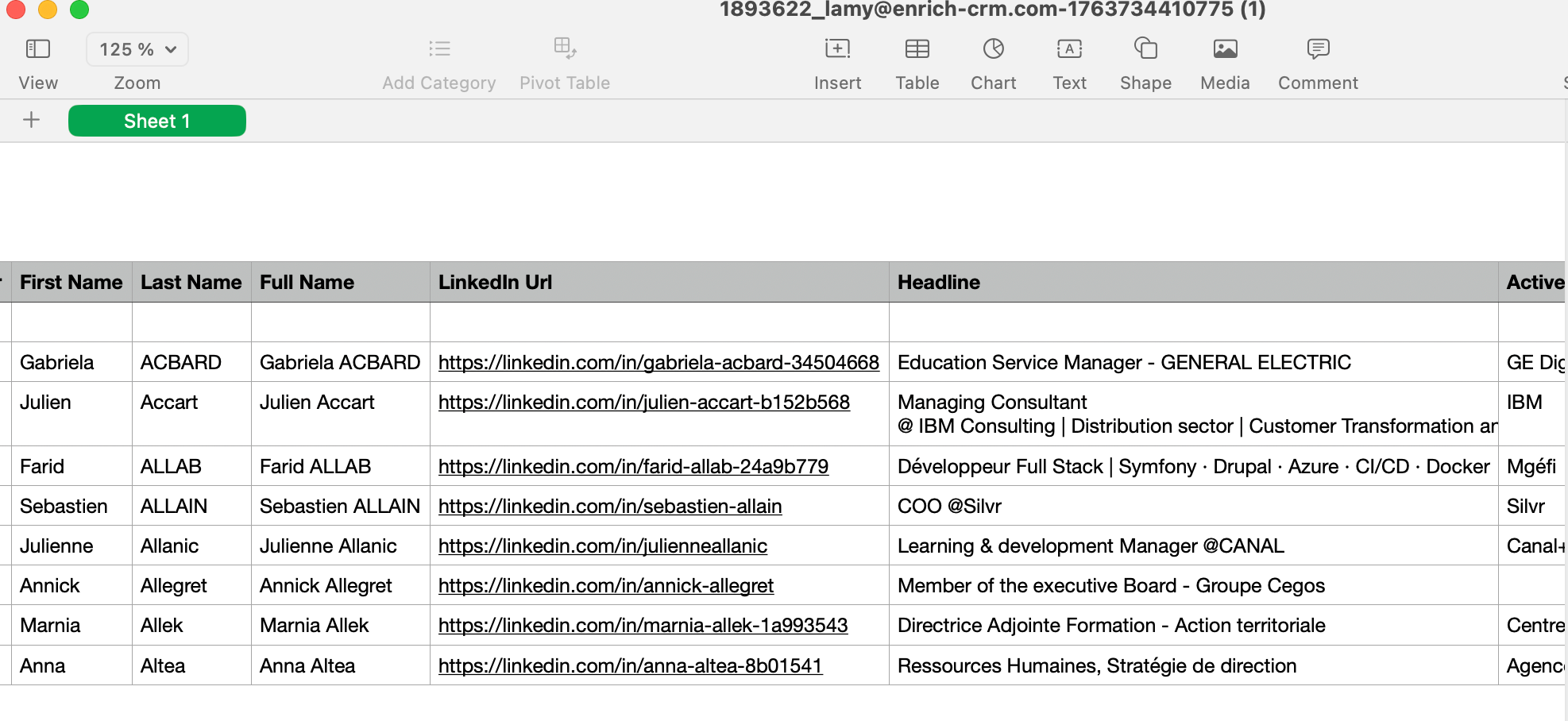
All added instantly, all automatically. 🤖
This level of detail gives you a deeper understanding of your leads, customers, and pipeline and unlocks opportunities that simple spreadsheets never show.
8. Download Your Enriched File
You can download your enriched dataset directly from the dashboard.
Just one important note:
For privacy reasons, Enrich CRM keeps enriched files for only 1 month 😬
After that, they're automatically removed from the system including any data stored from the original email.
In your downloaded output, you'll see:
- All your original columns
- New enrichment columns
- A status column for each record
This makes it easy to correct and re-upload if needed.
9. Need Help or Want to Learn More? We're Here for You
If you want to explore more enrichment categories, automate your enrichment workflow, or connect your CRM with Enrich CRM, feel free to reach out.
You can:
- Visit the Enrich CRM website
- Chat with support
- Or book a meeting with us anytime
We're here to help you enrich smarter, scale faster, and make your data truly work for you!